 YoutubeTools
Thumbnail Previewer
Compare up to two thumbnail drafts at desktop and mobile card sizes.

Related guides

Choose one subject and crop in until the action is recognizable. Use a background with enough contrast to separate the subject from the frame.
Load your draft and the intended title. Examine the smaller preview at normal zoom and check whether its subject reads at a glance.
Keep the title constant and change one element at a time, such as subject size or background contrast. Label the versions before saving them.

Scrub through the original file to a frame that shows the result or action clearly. Save a still and compare it with a second frame at a small size.
More creator tools



Preview two thumbnail drafts with the same title
Choose draft A and optionally draft B. Enter the intended video title once, so the text is identical across both drafts. Select Compare drafts. Keep one change per comparison, such as subject size, text contrast, or framing, so you can tell which choice helped.
Read the guides
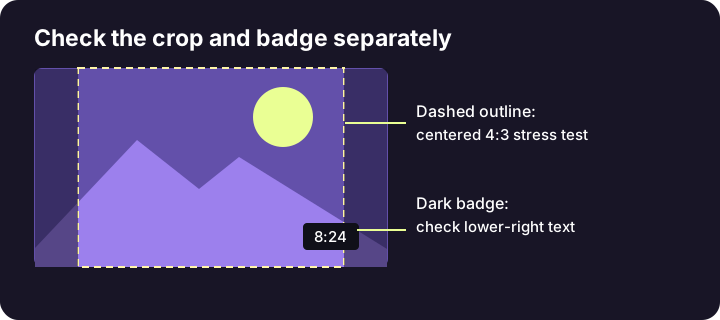
The desktop card uses a 16:9 viewport. The mobile check deliberately crops the center to 4:3 to show which details are vulnerable to narrower framing. The dashed line is a suggested margin and the corner label illustrates where a duration badge could cover text. These are design checks. YouTube can present different crops and overlays across devices.
Try this with a real draft
Put a product in the center and a three-word label near the lower right. In the desktop preview the text may fit, but the simulated badge can overlap it. Move the label inward, reload the second draft, and compare both without changing the title. Toggle the guides off to see how the art reads on its own.
If a draft does not load
Choose a supported image file and open it on your device first to confirm it is readable. The tool reads the chosen files in your browser. If an image is already too small or a detail was cropped out before export, use the editable source for the correction rather than enlarging the preview.